

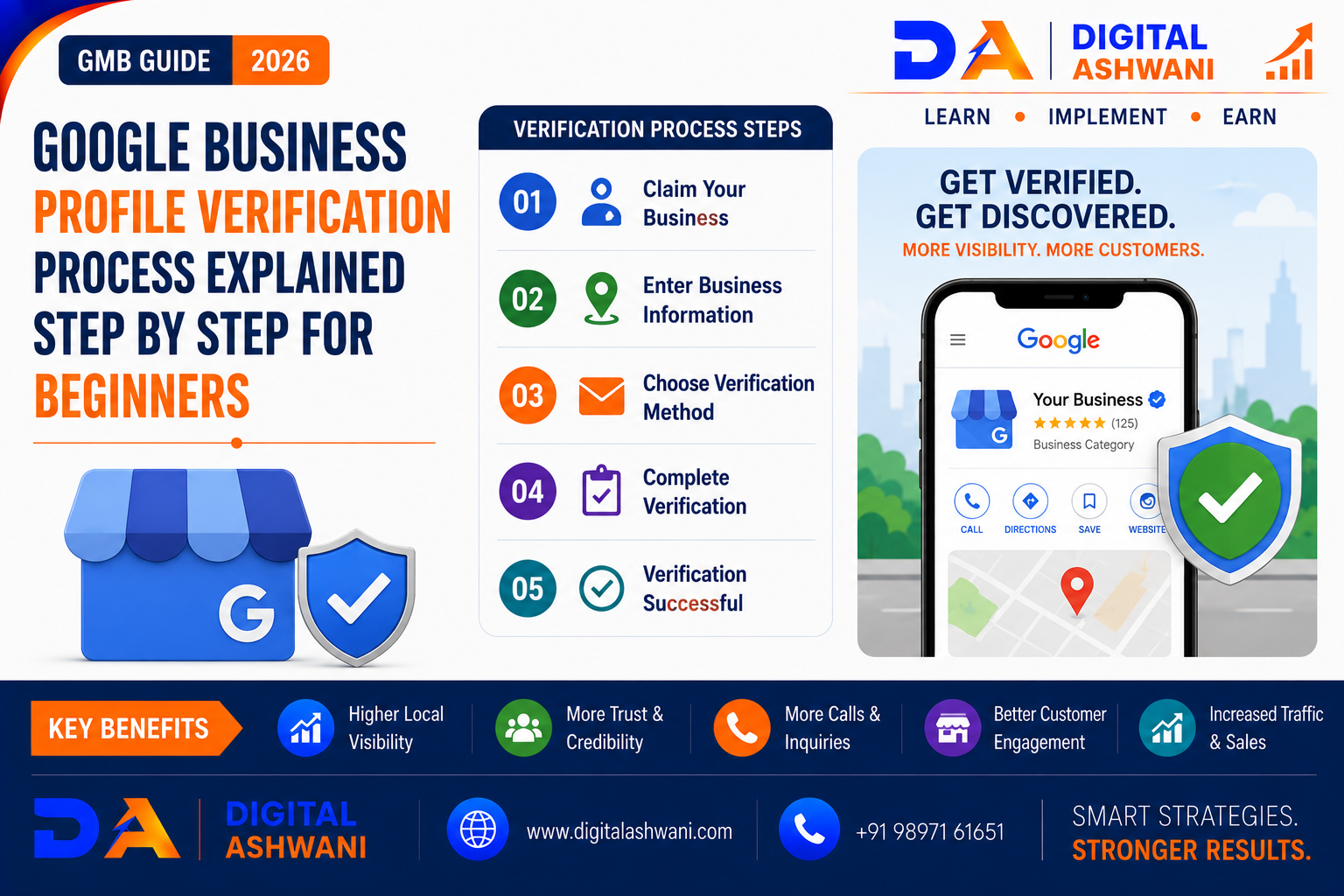
Google Business Profile Verification Process Explained Step by Step
Creating a Google Business Profile is an important step for businesses that want to appear on Google Search and Google Maps.
But creating a profile is only the beginning.
Google may require you to verify your business before you can fully manage important business information and interact with customers through your profile. Verification helps Google confirm that your business is legitimate and that you have the appropriate connection to manage the listing.
The verification process can look different for different businesses. Google automatically determines which verification methods are available based on factors such as business type, public information, region, and opening hours. You cannot simply choose any verification method you want.
In this beginner-friendly guide by Digital Ashwani, you’ll learn exactly how the Google Business Profile Verification Process works, what verification methods Google may provide, how to prepare for video verification, what happens after verification, and how to fix common verification problems.
What Is Google Business Profile Verification?
Google Business Profile verification is the process Google uses to confirm that a business exists and that the person managing the profile has the appropriate connection to that business.
Once verified, you can manage eligible business information and maintain your presence on Google Search and Maps.
Verification is therefore an important foundation for local SEO, but it should not be confused with ranking.
Why Does Google Require Business Verification?
Protecting Businesses and Customers
Verification helps Google maintain reliable business information and reduce issues such as:
- Fake Business Listings
- Unauthorized Profile Management
- Misleading Business Information
- Spam Listings
- Fraudulent Business Profiles
It also helps establish that the person managing a profile is connected to the actual business.
What Should You Prepare Before Verification?
Before starting, review your Business Profile information carefully.
Make sure you have:
- Correct Business Name
- Correct Business Category
- Accurate Address Where Applicable
- Valid Phone Number
- Website
- Business Hours
- Correct Service Area Where Applicable
- Access to the Google Account Managing the Profile
If Google offers video verification, prepare evidence that can demonstrate your business location, existence, and management of the business.
How to Start Google Business Profile Verification
Step 1: Sign In to the Correct Google Account
Sign in to the Google Account associated with your Business Profile.
You need to be signed into the account that manages or owns the profile.
Step 2: Find Your Business Profile
Search for your business name and city on Google or search for “my business” while signed in.
You can also find your business through Google Maps.
Step 3: Claim or Add Your Business
If your business isn’t already on Google, you may need to add it.
If an existing profile belongs to your business but hasn’t been claimed, follow Google’s process to claim it before verification.
Step 4: Select “Get Verified”
If verification is required, Google will show the verification options currently available for your profile.
Remember that Google automatically determines these options.
Google Business Profile Verification Methods
Depending on your business and the options Google provides, you may see:
- Video Recording
- Phone or SMS
- Live Video Call
- Mail/Postcard
Not every business receives every option. Google determines the available methods automatically.
Video Verification
What Is Video Verification?
Video verification allows you to record evidence showing that your business exists and that you manage or represent it.
Google currently recommends video verification when a business is eligible for this method.
Google’s video verification requirements state that the recording must be unique, unedited, complete, and at least 30 seconds long, and it must be recorded and uploaded through your Business Profile using a mobile device.
What Should You Show in the Video?
The evidence depends on your business type.
For a storefront or hybrid business, Google may expect you to show:
- Street Signs
- Building Numbers
- Nearby Businesses or Landmarks
- Storefront
- Permanent Business Signage
- Products
- Equipment
- Workspace
- Business Materials
- Proof That You Manage the Business
Google specifically says the video should help establish the business location, existence, and management.
Video Verification Tips
Before recording:
- Plan What You Will Show
- Clean Your Camera Lens
- Make Signage Clearly Visible
- Show Your Location
- Show Relevant Equipment
- Demonstrate Business Operations
- Avoid Sensitive Information
- Follow Google’s On-Screen Instructions
Don’t record sensitive information such as bank details, tax numbers, identification numbers, or private information.
How to Submit the Video
On your mobile device:
- Open your Business Profile.
- Select Get verified.
- Select the video verification option shown.
- Review Google’s requirements.
- Allow required camera or location permissions.
- Start recording.
- Review the video.
- Upload it.
Google says video verification review can take up to five working days.
Phone or SMS Verification
How Does Phone Verification Work?
If Google offers phone or SMS verification, you can receive a verification code through the business phone number.
The process generally involves:
- Open your Business Profile.
- Select Get verified.
- Choose Phone or SMS.
- Answer the call or open the SMS.
- Enter the verification code.
Google notes that you need to be able to answer the business phone or receive text messages, and interactive voice response systems won’t receive the code.
Email Verification
How Does Email Verification Work?
If email verification is available for your profile:
- Open your Business Profile.
- Select Get verified.
- Choose Email.
- Open the verification email.
- Follow the instructions provided.
Google requires access to the email address displayed in the verification screen.
Live Video Call Verification
What Is Live Video Verification?
Some businesses may be offered live video call verification.
During the call, you may need to demonstrate your business location and show evidence that you manage or represent the business.
What Should You Prepare?
You may need to show:
- Business Location
- Street Sign
- Storefront
- Products
- Equipment
- Workspace
- Business Materials
- Access to Business-Only Areas
Google says live video calls are only available during the opening hours of the business location.
Postcard Verification
How Does Postcard Verification Work?
If Google offers mail verification, it sends a verification code to the business address associated with your profile.
The basic process is:
- Select Get verified.
- Choose Postcard/Mail if available.
- Confirm the business address.
- Request the code.
- Wait for the postcard.
- Enter the verification code in your Business Profile.
Google says most postcard codes arrive within 14 days.
Important Postcard Rules
While waiting for your code:
- Don’t change your business name.
- Don’t change your address.
- Don’t change your category.
- Don’t repeatedly request new codes.
Google states that changing business information can invalidate the mailed code, and requesting another code invalidates the previous one. Verification codes expire after 30 days.
Also, never share your verification code with anyone. Google states that it will never ask you for the code.
How Long Does Google Business Profile Verification Take?
The time depends on the verification method.
Google says that after completing verification steps, the review can take up to five working days. Some profiles may be verified instantly in certain circumstances, including some profiles associated with verified Google Search Console websites or eligible bulk verification.
What Happens After Verification?
Your Profile Becomes Verified
After successful verification, Google sends a confirmation email. You can then manage your verified Business Profile according to Google’s policies.
After verification, focus on improving your local presence through:
- Complete Business Information
- Correct Categories
- Services
- Photos
- Reviews
- Business Updates
- Website Optimization
- Local SEO
Does Verification Improve Google Rankings?
Verification Is Not a Ranking Guarantee
Verification alone does not guarantee that your business will rank at the top of Google Search or Google Maps.
Google explains that local results are primarily influenced by relevance, distance, and prominence.
After verification, businesses should continue improving:
- Profile Completeness
- Local Relevance
- Website Quality
- Customer Reviews
- Business Information
- Customer Experience
Common Google Business Profile Verification Problems
The Verification Option I Want Isn’t Available
Google automatically determines which methods are available.
You cannot manually switch to a preferred verification method if Google doesn’t offer it for your profile.
Use the options Google provides.
The Video Was Rejected
If Google rejects your verification video, review the Review issues message and record another video that addresses the missing requirements.
Google provides examples such as missing business signage, missing nearby area information, or insufficient proof that you are authorized to operate the business.
The Verification Code Didn’t Arrive
If you’re using mail verification, allow the expected delivery period and follow Google’s troubleshooting instructions.
Don’t repeatedly request new codes because doing so can invalidate the previous code.
Google Asks Me to Re-Verify
Google may ask businesses to verify again, particularly when profile information has changed or Google needs additional confirmation.
Follow the verification instructions shown in your profile.
I Created a Duplicate Business Profile
Don’t create another profile simply because verification is taking longer than expected.
First check whether an existing profile already represents your business and follow Google’s ownership or duplicate-profile guidance.
Google Business Profile Verification Checklist
Before starting verification, check:
- Correct Google Account
- Accurate Business Name
- Correct Category
- Accurate Address Where Applicable
- Valid Phone Number
- Website Added
- Business Hours Updated
- Business Signage Ready
- Location Accessible
- Required Evidence Available
- Phone/SMS Access
- Email Access
- Verification Instructions Reviewed
How to Keep Your Business Profile Healthy After Verification
Keep Business Information Accurate
Regularly check:
- Business Name
- Address
- Phone Number
- Website
- Opening Hours
- Holiday Hours
- Services
- Business Description
Add Genuine Business Photos
Upload authentic photos of:
- Exterior
- Interior
- Products
- Services
- Team
- Workspace
Use images that accurately represent your business.
Manage Customer Reviews
Encourage genuine customer feedback and respond professionally to reviews.
Never purchase fake reviews or manipulate ratings.
Keep Your Profile Updated
Where applicable, publish useful updates about:
- Offers
- Events
- New Services
- Products
- Announcements
Keep temporary promotions and business information current.
Common Verification Mistakes to Avoid
Using Fake Business Information
Always provide genuine and accurate information.
Creating Duplicate Profiles
Don’t create additional listings simply because verification is delayed.
Using an Ineligible Address
Only use an address that complies with Google’s Business Profile requirements.
Changing Details During Mail Verification
Avoid changing the business name, address, or category while waiting for a postcard code.
Sharing Your Verification Code
Never share the code with third parties. Google states that it will not ask for your verification code.
Buying Guaranteed Verification Services
Avoid anyone claiming they can guarantee Google verification through unofficial methods.
Internal Linking Suggestions (Digital Ashwani)
Strengthen the Google Business Profile and Local SEO content cluster by linking this article with:
- Complete Google Business Profile Optimization Guide for Higher Local Search Rankings
- How Google Business Profile Reviews Improve Local Search Rankings Significantly
- Google Posts Strategy to Generate More Calls and Website Clicks Locally
- Google Business Profile Optimization for Tour Operators
- SEO Strategies for Restaurants to Increase Online Orders and Reservations
- Top Local SEO Companies in Delhi Compared for Lead Generation
- Which Local SEO Agency in Delhi Offers the Most Affordable Packages?
- How Search Engines Crawl, Index, and Rank Websites for Better Visibility
These internal links create a strong topical cluster around Google Business Profile, verification, Google Maps, Local SEO, reviews, and local search visibility.
External Resources
For the latest official verification information, refer to:
- Google Business Profile Help
- Google Business Profile Verification Help
- Google Business Profile Video Verification Guide
- Google Business Profile Guidelines
- Google Search Central
Google can update verification methods and eligibility requirements, so always check the current official documentation before completing verification.
Frequently Asked Questions
How long does Google Business Profile verification take?
Google says the verification review can take up to five working days after you complete the required verification steps. Mail verification can take longer because the postcard itself may take up to 14 days to arrive.
Can I choose my preferred verification method?
No. Google automatically determines which verification methods are available for your specific Business Profile.
Why can’t I see phone verification?
Phone or SMS verification isn’t available for every business. If Google doesn’t display that option, use another verification method shown in your profile.
Can I verify a business without a storefront?
Yes, eligible service-area businesses can have a Business Profile without displaying a public customer-facing address. The business must still meet Google’s eligibility requirements. Video verification can support service-area businesses when Google offers it.
Does verification guarantee higher Google Maps rankings?
No. Verification is important for managing the profile, but it doesn’t guarantee higher rankings. Local rankings depend on factors including relevance, distance, and prominence.
Can I change my business information after verification?
Yes, you can generally update eligible information, but changes should always accurately represent your business and comply with Google’s guidelines.
What should I do if verification keeps failing?
Review the exact reason provided by Google, correct the missing information or evidence, and try the available verification method again. If another method is available, you can try it. Google also recommends contacting support if you’re still unable to verify.
Final Thoughts
The Google Business Profile Verification Process is an essential step for businesses that want to establish and manage their presence on Google Search and Google Maps.
The process is straightforward when you prepare accurate business information and carefully follow the verification method Google provides.
Remember:
Accurate Information + Genuine Business Evidence + Correct Verification Process = Stronger Business Profile Foundation
But verification is only the beginning.
Once your profile is verified, focus on accurate information, relevant categories, authentic photos, genuine customer reviews, useful updates, strong local content, and a high-quality website.
Most importantly, don’t assume that verification automatically means higher rankings. The real objective is to build a trustworthy local presence that helps customers discover your business, understand what you offer, contact you, and ultimately choose you over competitors.
At Digital Ashwani, we regularly publish practical guides on Google Business Profile, Local SEO, Google Maps SEO, Google Ads, AI Marketing, and digital marketing to help businesses improve their online visibility and generate sustainable growth.
